

Destroy your Nebari deployment
Introduction
Section titled “Introduction”This is a guide on how to destroy your Nebari cluster, this includes all resources created the first time you deployed it. With your nebari-config.yaml configuration file, you can use a handy destroy command to automatically destroy resources with Nebari.
You will need to export your cloud credentials, as you would for a nebari deploy, before you can destroy these cloud resources.
Destroying Nebari
Section titled “Destroying Nebari”You can specify the nebari-config.yaml configuration file created while deploying Nebari to destroy the resources as well. Type the following command on your command line:
nebari destroy -h Usage: nebari destroy [OPTIONS]
Destroy the Nebari cluster from your nebari-config.yaml file.
╭─ Options ─────────────────────────────────────────────────────────────────────────────────────────────────────────────────╮│ * --config -c TEXT qhub configuration file path [default: None] [required] ││ --output -o TEXT output directory [default: ./] ││ --disable-render Disable auto-rendering before destroy ││ --disable-prompt Destroy entire Nebari cluster without confirmation request. Suggested for CI use. ││ --help -h Show this message and exit. │╰───────────────────────────────────────────────────────────────────────────────────────────────────────────────────────────╯Once you've decided to destroy your cluster and have read through the nebari destroy --help command, you are you now ready.
nebari destroy -c nebari-config.yamlThe terminal will prompt you to press enter to verify that you wish to destroy your Nebari cluster.
If the destruction is successful, you will see the following output:
[terraform]: Nebari properly destroyed all resources without errorCongratulations! You have successfully destroyed your Nebari deployment and the associated resources!
Manually destroying the resources
Section titled “Manually destroying the resources”Amazon Web Services (AWS)
Section titled “Amazon Web Services (AWS)”Destroy resources from the AWS console
Section titled “Destroy resources from the AWS console”Here, we outline how to find and destroy resources from the AWS console.
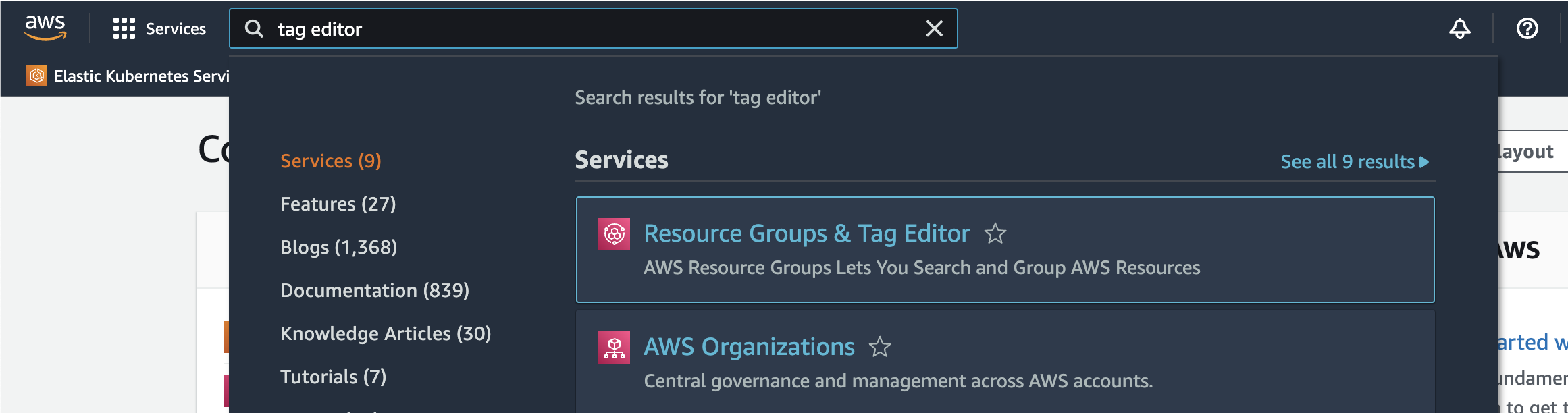
- Sign in to your AWS account and in the search bar type
Tag Editor
- From the
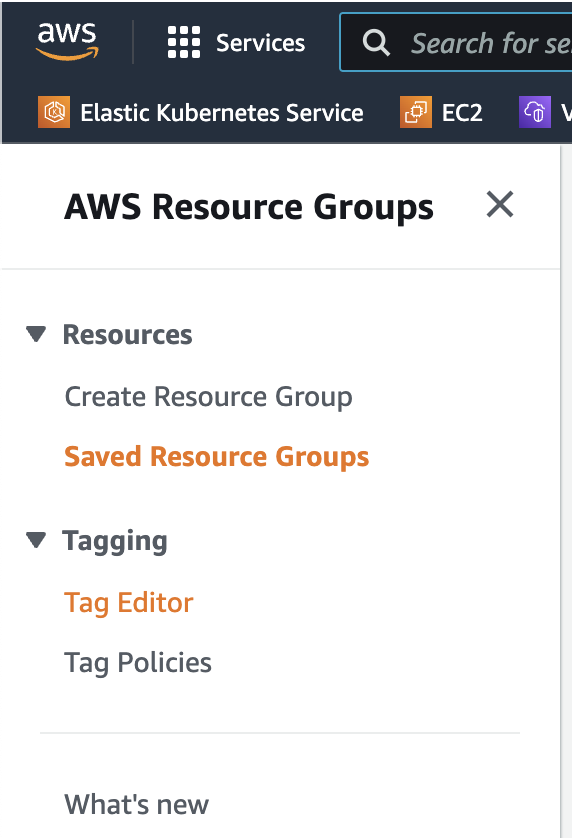
Resource Groups & Tag Editorpage, navigate toTag Editorfrom the left most panel
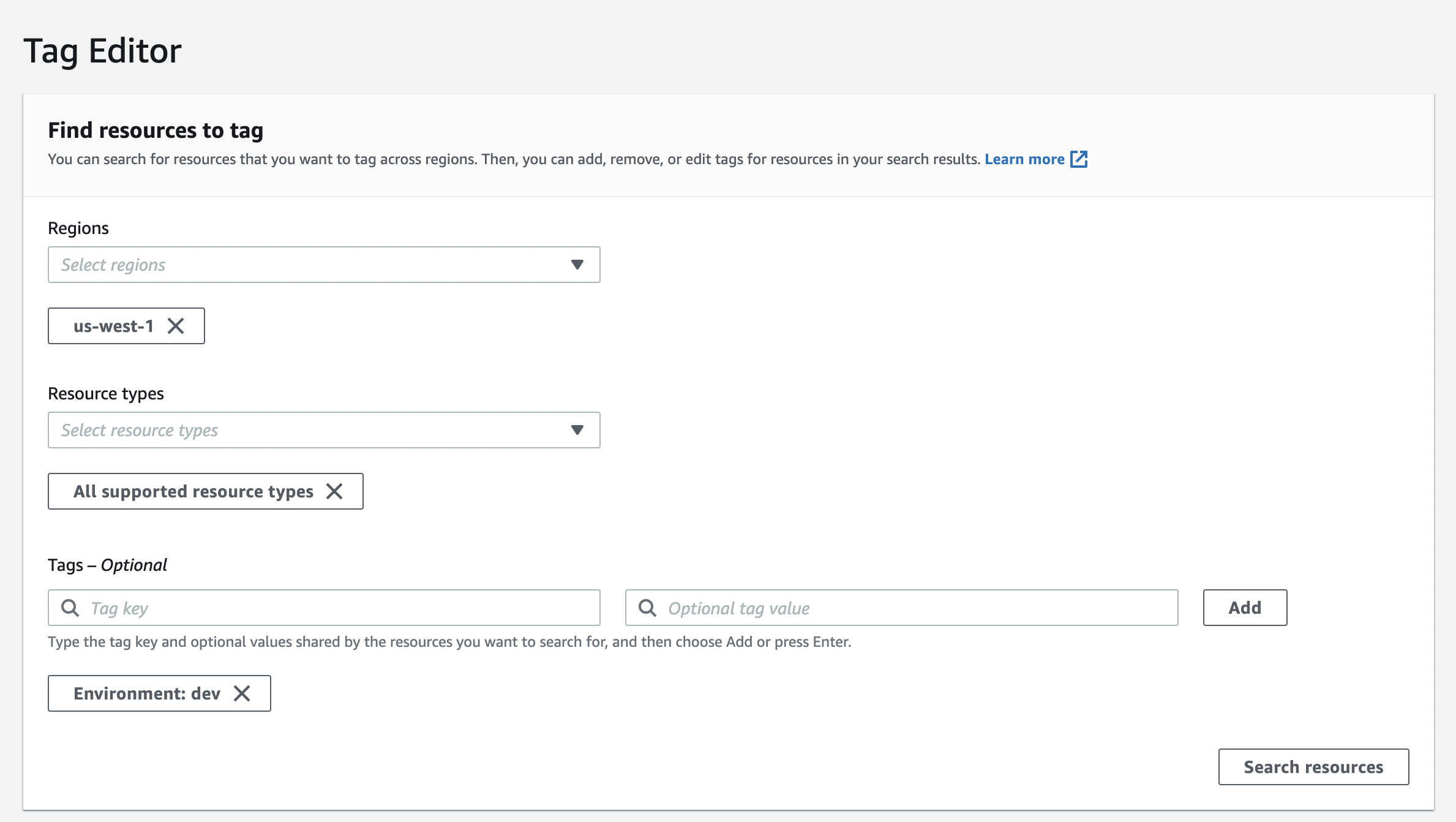
- Fill out the form as follows:
Regions- the region you deployed your Nebari cluster (or selectall regions)Resource types- selectAll supported resource typesTags- select
Environmentfor key (on the left) - enter the namespace you chose for your Nebari cluster (on the right)
- select
-
From here you can filter further if needed by entering the name of your Nebari cluster.
-
At this point, select the resource you wish to destroy. This will open another tab for you to destroy that resource.
Destroy AWS resources using a dev tool script
Section titled “Destroy AWS resources using a dev tool script”This method of destroying lingering AWS resources requires cloning down the Nebari repo.
git clone https://github.com/Quansight/qhub.gitOnce cloned, you can run a script which will attempt to destroy all lingering AWS resources.
python /path/to/qhub/scripts/aws-force-destroy.py -c /path/to/nebari-config.yamlThis will print to the terminal the resources it has destroyed. This scripts often needs to be run multiple times before all the resources are fully destroyed.
If you deployed your Nebari cluster on Azure and the nebari destroy command failed, you will need to destroy one resource: the resource group.
You will need Azure's CLI az installed and configured. Then run the following.
az group delete --resource-group "<project-name>-<namespace>"Or if you'd prefer, you can destroy the resource group from the Azure portal, follow these instructions.
Google Cloud Platform (GCP)
Section titled “Google Cloud Platform (GCP)”If you deployed your Nebari cluster on GCP and the nebari destroy command failed, you will need to destroy two resources, the Kubernetes cluster (GKE) and cloud storage bucket (GCS).
You will need Google's gcloud and gsutil.
To destroy the cloud storage bucket, run the following.
gsutil -m rm -r gs://<project-name>-<namespace>-terraform-stateAnd to destroy the Kubernetes cluster, run the following.
gcloud container clusters delete <project-name>-<namespace> --region <region>If you wish to destroy the cloud storage bucket from the GCP console, follow these instructions on Deleting buckets. And to destroy the Kubernetes cluster from the GCP console, follow these instructions on Deleting a cluster.